Authorization and player data
You can:
- Save game data (completed levels, experience, in-app purchases, etc.) on the Yandex server using SDK methods or transfer it to your own server. Cloud saves allow users to continue playing on different devices.
- Personalize the game using data from the user's Yandex profile, such as their name.
Player information
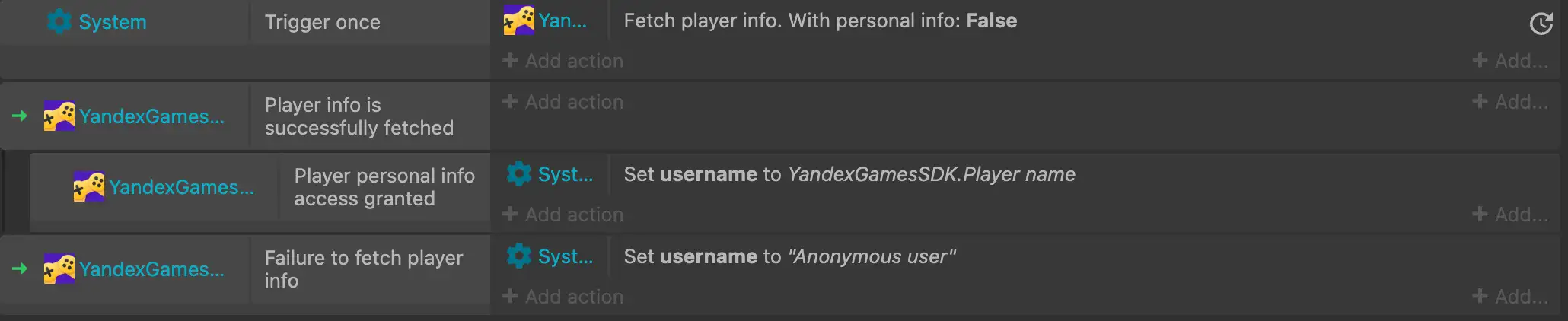
To start working with player data, use the Fetch player info action together with the trigger conditions Player info is successfully fetched and Failure to fetch player info.
To get player data use:
- Player is authorized condition: Checks if the player is authorized in Yandex.
- Player personal info access granted condition: Checks if the player's personal data has been obtained.
- Player signature expression: A
stringcontaining user data from the Yandex profile and a signature. Consists of two strings encoded inBase64format. - Player avatar expression: A
string, link to the player's avatar. - Player name expression: A
string, the player's name. - Player paying status expression: A
string, the user's payment activity status on the platform. - Player unique id expression: A
string, the player's unique identifier.
In-game data
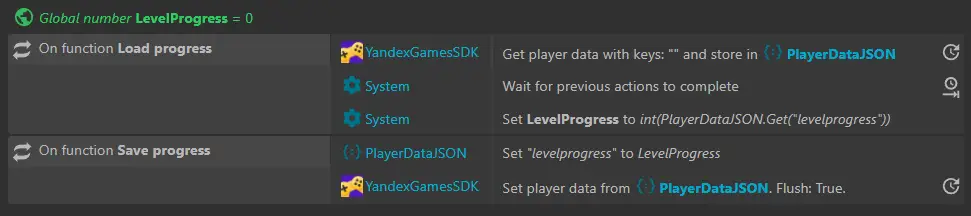
To work with the user's in-game data, use the actions:
- Get player data — requests the user's in-game data and writes it to a JSON object.
- Set player data — sends the user's in-game data from a JSON object to Yandex Games.
- Get player stats — requests the user's numerical data and writes it to a JSON object.
- Set player stats — sends the user's numerical data from a JSON object to Yandex Games.
- Increment player stats — increases the user's numerical data by the specified value.
Warning
All these actions are asynchronous, and their execution takes some time. To avoid errors, use the action Wait for previous actions.
Was the article helpful?
Previous