TV support

To ensure the game works correctly on the TV platform, it must meet the requirements (item 1.6.3).

TV remote control

To interact with remote control buttons, the plugin includes:

  • Condition TV Remote button pressed: True if the selected button is currently held down.
  • Trigger On TV Remote button press: Triggered when the player presses the specified button.
  • Trigger On TV Remote button release: Triggered when the player releases the specified button.

Each of these visual blocks can be assigned a button from the list: Up, Down, Left, Right, and OK.

Thanks to them, you can implement TV control support without worrying about platform specifics.
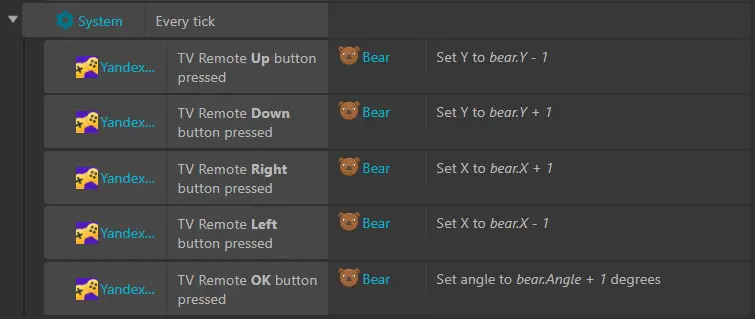
Construct 3 screenshot: game settings screen for the TV platform using the YandexGamesSDK plugin. At the top, a row with 3 cells; the first two contain text: gear icon "System", "Every tick", the last cell is empty. Below is a table with 5 rows and 3 columns. Row 1 — Yandex Games icon | "Yandex...", "Up button pressed on TV remote", bear face icon "Bear | Set Y to bear.Y - 1". Row 2 — Yandex Games icon | "Yandex...", "Down button pressed on TV remote", bear face icon "Bear | Set Y to bear.Y + 1". Row 3 — Yandex Games icon | "Yandex...", "Right button pressed on TV remote", bear face icon "Bear | Set Y to bear.Y + 1". Row 4 — Yandex Games icon | "Yandex...", "Left button pressed on TV remote", bear face icon "Bear | Set Y to bear.Y - 1". Row 5 — Yandex Games icon | "Yandex...", "OK button pressed on TV remote", bear face icon "Bear | Set angle to bear.Angle + 1 degrees".

HISTORY_BACK and EXIT events

The HISTORY_BACK event can be triggered in various ways: by pressing the Back button on the TV remote, voice commands, or gestures.

Key Back button behaviors in game context:

  • Pressed in the game's start menu: Shows a confirmation window to exit the game.
  • Pressed during gameplay: Pauses the game and opens the game menu.
  • Double-pressed during gameplay: Shows a confirmation window to exit the game.

The On History Back event condition in the plugin handles the HISTORY_BACK event.

To exit the game, use Dispatch event with the EXIT parameter.
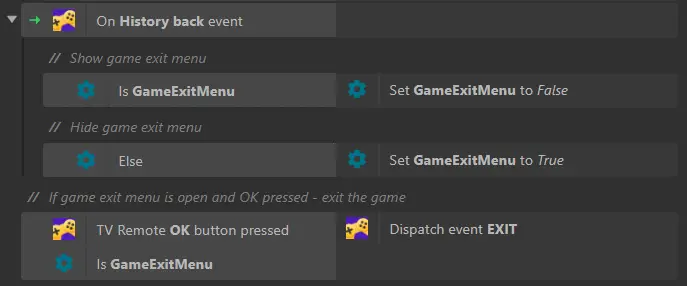
Construct 3 screenshot: game settings screen for the TV platform using the YandexGamesSDK plugin. At the top, a row with 2 cells; the first contains the Yandex Games icon | "On HISTORY_BACK event". Below is the text "// Show exit menu", followed by a row with 2 cells: settings icon | "ExitMenuOpen true", settings icon | "Set ExitMenuOpen to False". Below is the text "// Hide exit menu", followed by a row with 2 cells: settings icon | "Else", settings icon | "Set ExitMenuOpen to True". Below is the text "// If the menu is open and the player presses OK - exit the game", followed by a row with 2 cells: Yandex Games and settings icons | "OK button pressed on TV remote  ExitMenuOpen true", Yandex Games icon | "Send Exit event".

TV remote emulator

The plugin includes a built-in TV remote emulator that can be activated by pressing the F6 key to simplify game testing.

Note

The remote control emulator is only available in preview mode. It will not work in the release version of the game.
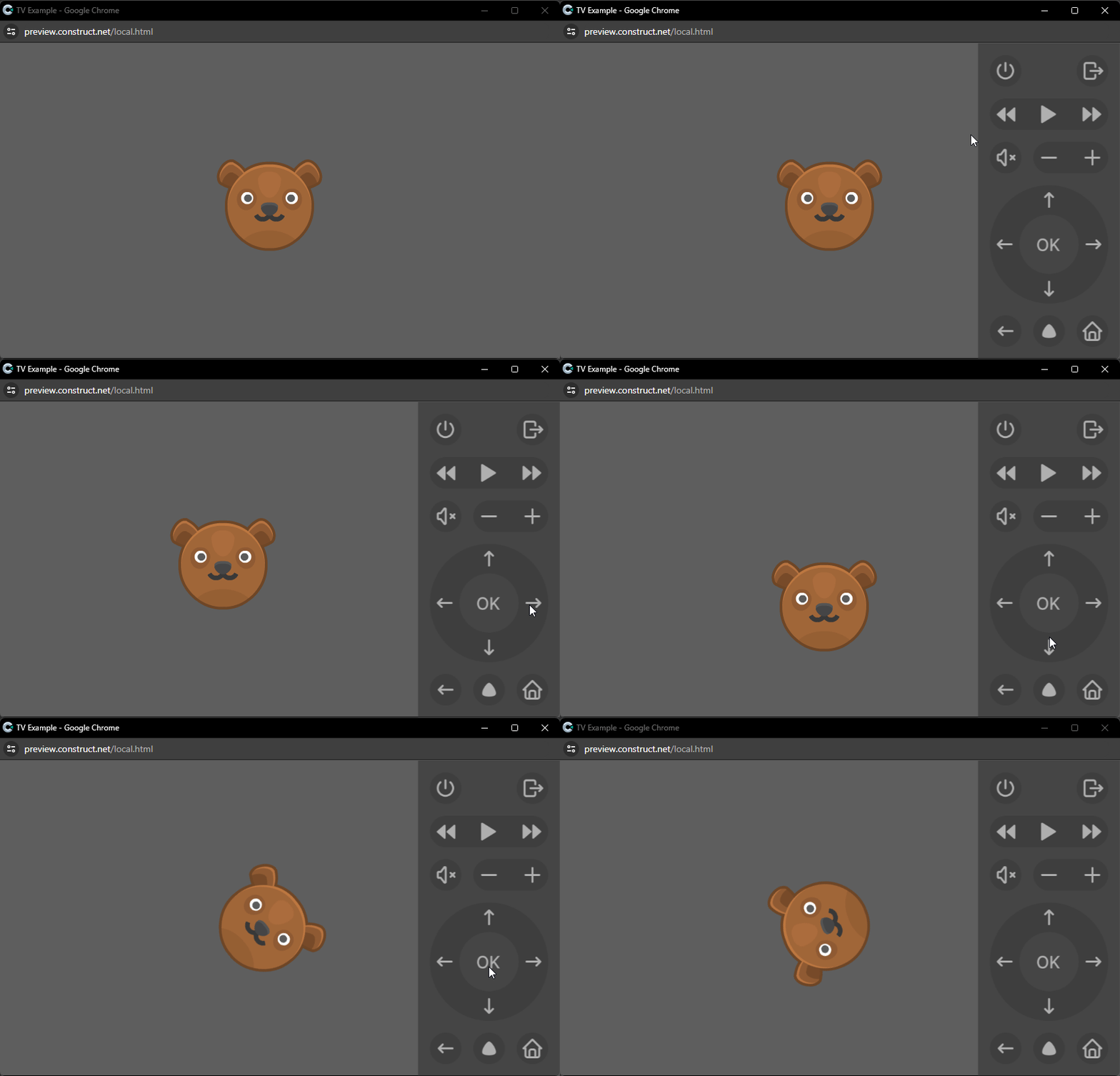
TV remote testing video: a pop-up window "TV Example - Google Chrome" is open, a bear face icon on a gray background, and a virtual TV remote on the right side of the screen. The user sequentially presses the ←, →, ↓, ↑, and "OK" buttons, and the bear icon moves left, right, down, up, and then rotates clockwise.


Repository