How to set a trigger condition
Adding a condition
To specify issue updates that will fire the trigger, set a condition:
-
In the Under condition section, select a condition: an event related to updating an issue or adding a comment, or editing issue parameters.
If you don't see the condition you need in the section, click More conditions and select it from the list.
To find a local queue field, enter the key of the queue where you want to set up an automation and a period before the field name (for example,
DEVS.Tester). -
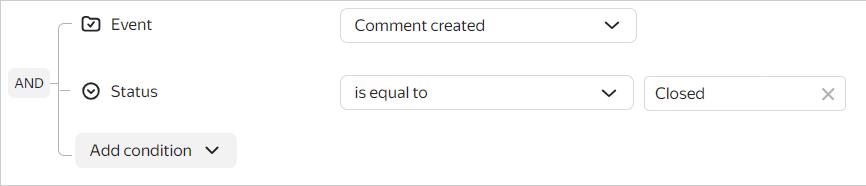
Choose an event or comparison operation depending on the condition type.
If a comparison operation is selected, specify the value to be compared.
-
If you want the trigger to fire when multiple conditions are met, click Add condition and select the required option from the list.
By default, a trigger fires when all conditions are met at once: the logical AND applies to the condition group. If you want the trigger to fire when at least one condition is met, click the operator icon to the left of the condition group. As a result, the logical OR will be selected.
-
You can add a number of nested groups of conditions that will match the logical
ANDor logicalOR:-
To create a group or add a new condition to an existing one, select a condition, click , and select Convert to condition group.
-
To group a condition with an existing one: select a condition, click and then Group it with, and select a condition to group it with.
-
Usage examples for conditions
- Changing the Assignee field value: Issue board
- Event → Issue changed: Automatically assign an issue assignee
- Event → Formula fields changed: Automatically calculate the date difference
- Action with link → Link created: Change issue status after creating a link
- SLA limit violation: Change issue priority when an SLA timer expires
- Checklist: Change issue status after completing a checklist
- Comment text: Change issue status if a comment with specific text is added
- Related issue parameters: Close a parent issue after closing all subtasks
Comparison operators
If the trigger's condition includes a comparison operation, the condition will be checked each time the issue changes. If the condition is met, the trigger fires.
Different comparison operations are available for different parameter types.
You can specify additional options for certain comparison operations:
- Parameter changed: The trigger fires when the parameter value changes and a condition is met as a result.
- Ignore case: Treat uppercase characters as equivalent to the same lowercase characters.
- Ignore markup: Ignore the Markdown markup in the text.
Field value
These operators compare a field value with the specified value:
- is equal to checks whether the current value matches the specified value.
- became equal to checks whether the field value changed to the specified value.
For example, to make a trigger fire when an assignee is set for an issue with the Open status, use the following conditions:
Status → is equal to →
Open
AND
Assignee → field value set
To make a trigger fire when an issue's status changes to In progress, use the following condition:
Status → became equal to →
In progress
Field state and changes
The Field value is empty and Field value is not empty operators check whether a field has a value.
The Field value set, Field value changed, and Field value deleted operators check whether a value was added, changed, or removed.
For example, to make a trigger fire when an assignee is set for an issue, use the following condition:
Assignee → field value set
The trigger also fires if the parameter is set when the issue is created, for example, if an assignee is specified.
Numeric values
For a numeric field, specify a number and select an operator:
- is greater than, is greater than or equal to, is less than, and is less than or equal to check the current field value.
- became greater than, became greater than or equal to, became less than, and became less than or equal to check whether the comparison became true after the field value changed.
For example, to make a trigger fire when an issue changes and the Time spent field is at least eight hours, use the following condition:
Time spent → is greater than or equal to →
8h
To make a trigger fire when the field value changes from less than eight hours to eight hours or more, use the following condition:
Time spent → became greater than or equal to →
8h
Dates
Specify a date and select an operator to compare it with the date in the field:
|
Operator |
Condition is met if the field date |
|
The date matches |
Matches the specified date |
|
Later than date |
Is later than the specified date |
|
Later than or equal to |
Is later than or matches the specified date |
|
Earlier than |
Is earlier than the specified date |
|
Earlier than or equal to |
Is earlier than or matches the specified date |
Lists of values
These operators apply to fields that can contain multiple items, such as Tags.
To compare the number of items, specify a number and select an operator:
|
Operator |
Condition is met if the number of items |
|
Elements quantity is equal |
Is equal to the specified number |
|
Elements quantity is not equal |
Is not equal to the specified number |
|
Elements quantity is greater |
Is greater than the specified number |
|
Elements quantity is greater or equal |
Is greater than or equal to the specified number |
|
The number of elements is less than |
Is less than the specified number |
|
Elements quantity is less or equal |
Is less than or equal to the specified number |
To compare the items with a specified list, use one of the following operators:
- Contains all elements: The field contains all specified values.
- Contains any of the elements: The field contains at least one of the specified values.
- Doesn't contain any elements: The field contains none of the specified values.
For example, to make a trigger fire when the hello tag is added to an issue, use the following condition:
Tags → contains all elements →
hellowith the Parameter changed option
Comment text
For the Comment text condition, specify text or text fragments and select an operator. The condition is met if at least one new or edited comment matches the selected operator:
- Contains the fragment: The text contains the specified fragment.
- Doesn't contain the fragment: The text does not contain the specified fragment.
- Matches: The text fully matches the specified value.
- Contains any of the fragments: The text contains at least one of the specified fragments.
- Doesn't contain any fragments: The text contains none of the specified fragments.
Comment author
The Comment author condition checks the authors of new comments related to an issue update.
To compare the author with one user, select a user and one of the following operators:
- Field value is equal to: The specified user posted at least one new comment.
- Field value isn't equal to: Another user posted at least one new comment.
To check the author's group membership, specify groups and select one of the following operators:
- The user is a member of one of the groups: At least one author of a new comment belongs to one of the specified groups.
- The user isn't a member of any groups: At least one author of a new comment does not belong to any of the specified groups.
To compare the set of authors of all new comments in the current update with a list of users, select the users and one of the following operators:
- Contains all elements: The authors include all specified users.
- Contains any of the elements: The authors include at least one of the specified users.
- Doesn't contain any elements: The authors do not include any of the specified users. The condition is also met if there are no new comments in the current update.
For example, to prevent the trigger from firing if Anna or Boris is among the authors of new comments, use the following condition:
Comment author → doesn't contain any elements →
Anna,Boris
If an update contains multiple comments from different authors, Field value is equal to and Field value isn't equal to are checked for individual comments. For details about this case, see Trigger conditions are met in unexpected ways.
To configure the condition through the API, see Trigger condition objects and Getting trigger parameters.