Installation
Installing the Plugin from Cocos Store
You can install the plugin directly from the Cocos Store.
Installing the Plugin from the Repository
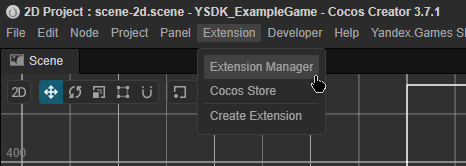
After downloading the plugin, open your project in Cocos Creator or create a new one. In the top panel, hover over Extension and select Extension Manager.
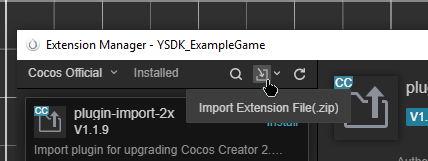
Next, hover the pointer over Import Extension File (.zip) and in the menu that appears, select the plugin you downloaded earlier.
Template Setup
Most likely, after installing the plugin, you will see messages similar to those below. This happens because Yandex Games requires the Yandex Games SDK to be imported directly into files such as index.html, which appear after compilation.

To resolve this issue, visit the new Yandex Games SDK section and select the template generation option so the plugin generates the required templates on its own. You can also write them manually.
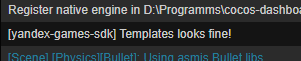
If the templates are compiled successfully, the plugin should output a message similar to the one below to the console. This means everything is in order, and you can get started.
For more detailed information: build template setup, Cocos Creator web view setup.