Ads

You can generate revenue from placing ad units in your games. To do this:

  1. Study the features and recommendations for placing ads.
  2. Set up ad calls using the SDK.
  3. Enable monetization in the Developer Console.

Interstitial ad

An ad block that completely covers the app and is shown between a user's request for some information (for example, when moving to the next game level) and receiving it.

You can show a fullscreen ad using the Show fullscreen ad action.
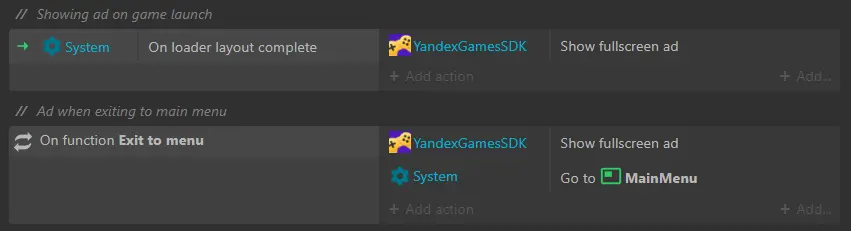
Construct 3 screenshot: ad settings screen using the YandexGamesSDK plugin. At the top, the text "// Showing ads at game start", below is 1 row with 3 cells, at the end of cells 2 and 3 are the buttons "+ Add action" and "+ Add..." respectively. The three cells contain the following texts: "System Loading layout completed", "YandexGamesSDK", "Show fullscreen ad". Next, the text "// Ads when going to the menu", below is 1 row with 3 cells, at the end of cells 2 and 3 are the buttons "+ Add action" and "+ Add..." respectively. The three cells contain the following texts: "Function Go to menu", "YandexGamesSDK, System", "Show fullscreen ad, Go to Menu".

Rewarded video ads

A video ad block for which the user receives a reward, such as in-game currency, for watching.

To show a rewarded video ad, use the Show rewarded ad action.

Note

The ID is a way to distinguish ad calls; it is not related to the Yandex Advertising Network. The ID can be left empty.
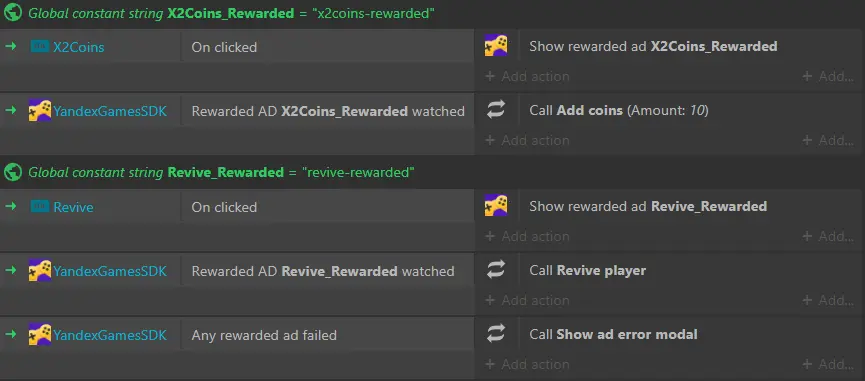
Construct 3 screenshot: ad settings screen using the YandexGamesSDK plugin. Green text "Global constant string Ad_X2Coins = "x2coins-rewarded"". Below is a table with 3 columns (each cell in the third column has a "+ Add action" button at the bottom) with 2 rows. Row 1 — "X2Coins", "On click", "Show rewarded ad Ad_X2Coins". Row 2 — "YandexGamesSDK", "Rewarded ad Ad_X2Coins viewed", "Call Add coins (Amount: 10)". Green text "Global constant string Ad_Revive = "ad-revive"". Below is a table with 3 columns (each cell in the third column has a "+ Add action" button at the bottom) with 3 rows. Row 1 — "Revive", "On click", "Show rewarded ad Ad_Revive". Row 2 — "YandexGamesSDK", "Rewarded ad Ad_Revive viewed", "Call Revive player". Row 3 — "YandexGamesSDK", "On error of any rewarded ad", "Call Show ad error menu".

You can also use the plugin to mute music while an ad is showing, which is one of the platform requirements.

Construct 3 screenshot: ad settings screen using the YandexGamesSDK plugin. Table with 4 columns (each cell in the first column has a Yandex Games icon, each cell in the third column has a sound icon and the text "Audio") and 3 rows. Row 1 — "Any rewarded ad opened", "Set muted". Row 2 — "Any rewarded ad closed", "Set unmuted". Row 3 — "On error of any rewarded ad", "Set unmuted".

Sticky banner

An ad unit that is displayed during the game.

For information on enabling the sticky banner in the Developer Console, see the main article.

By default, the sticky banner appears upon launch and remains visible throughout the entire session. To configure when the banner is shown:

  1. Under Sticky banners, enable the Use the API to display a sticky-banner option.
  2. Set up banner display using actions:
    • Show sticky banner
    • Hide sticky banner

For example, you can show a banner when the menu opens and hide it during gameplay.

Construct 3 screenshot: ad settings screen using the YandexGamesSDK plugin. At the top, the text "// Showing the banner during pause", below is 1 row with 3 cells: "Function Open pause", "YandexGamesSDK", "Show Sticky banner". Another line of text "Hiding it to make the game easier for the player", below is 1 row with 3 cells: "Function Close pause", "YandexGamesSDK", "Hide Sticky banner".


Repository