In-app purchases

Add purchases to the game (for example, extra time to complete a level or accessories for the game character) and earn income. To do this:

Purchase process

You can start the in-app purchase process with the Initialize purchase method using the following parameters:

Parameter

Type

Description

ID

string

Unique product identifier in the catalog.

Payload

string

Optional data sent with the purchase.

After the player successfully completes a purchase, the Specific product purchase success and On any purchase success triggers become active.

However, if the player did not make a purchase and closed the window, the Specific product purchase error and On any purchase error triggers become active.

The triggers listed above give you access to expressions for handling a successful or failed purchase:
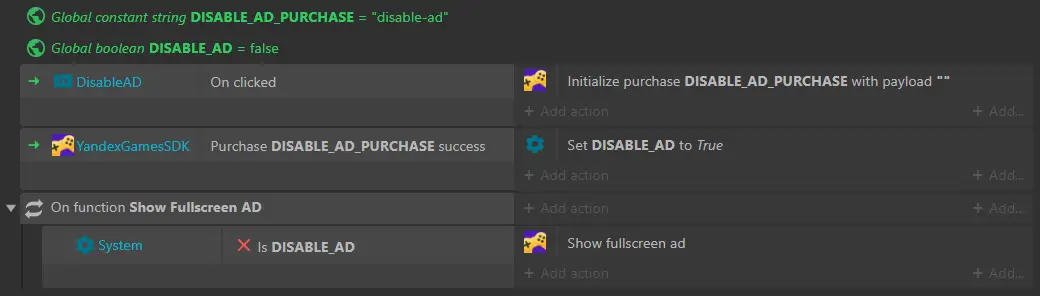
Construct 3 screenshot: in-app purchase setup screen using the YandexGamesSDK plugin. 2 green labels: "Global constant string DISABLE_ADS_PURCHASE = "disable-ads"", "Global boolean DISABLE_ADS = false". Then the text: "// Start the purchase process". Below is a table of three columns with one row — "DisableAD", "On click", "Initialize purchase DISABLE_ADS_PURCHASE with data """. Then the text: "// If the purchase is made, disable ads". Below is a table of three columns with one row — "YandexGamesSDK", "Successful purchase DISABLE_ADS_PURCHASE", settings icon | "Set DISABLE_ADS to True".

Purchase handling

There are two types of purchases:

For handling both types of purchases, we recommend using the For each purchase loop, which gives access to expressions in the Purchases list with the in purchases list postfix.

Non-consumable purchase (ad removal)

Logic for handling a permanent purchase:

  • After a successful purchase, disable ads.
  • At each game launch, check if the purchase is activated, and if so, disable ads.
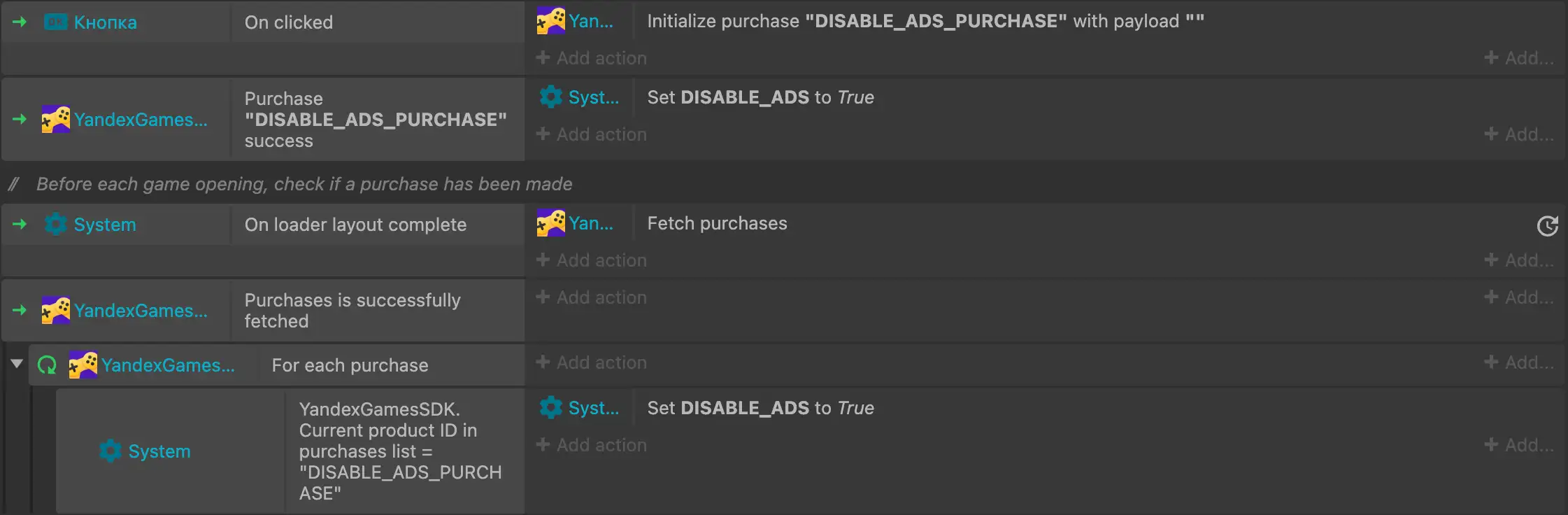
Construct 3 screenshot: in-app purchase setup screen using the YandexGamesSDK plugin. Table of three columns (each cell in the third column has "+ Add action" and "+ Add..." buttons) with three rows. Row 1 — "Button", "On clicked", "Yan... | Initialize purchase "DISABLE_ADS_PURCHASE" with data """. Row 2 — "YandexGames…", "Successful purchase "DISABLE_ADS_PURCHASE"", settings icon "Sys... | Set DISABLE_ADS to True". Then the text: "// Before each game launch, check whether the purchase was made". Below is a table of three columns (each cell in the third column has "+ Add action" and "+ Add..." buttons) with 4 rows. Row 1 — "System" settings icon, "Boot layout completed", "Yan... | Request purchases". Row 2 — "YandexGames…", "Purchases loaded", empty cell. Row 3 — "YandexGames…", "For each purchase", empty cell. Row 4 (nested in the previous row) — settings icon "System", "YandexGamesSDK, empty cell. Identifier of the current product in the purchase list = "DISABLE_ADS"", action "Set DISABLE_ADS to True", settings icon "Sys... | Set DISABLE_ADS to True".

Consumable purchase (in-game currency)

Logic for handling a consumable purchase:

  • After a successful purchase — process the purchase with the Consume purchase method and credit in-game currency.
  • At each game launch, check if the purchase is still present, and if so, process the purchase with the Consume purchase method and credit in-game currency.
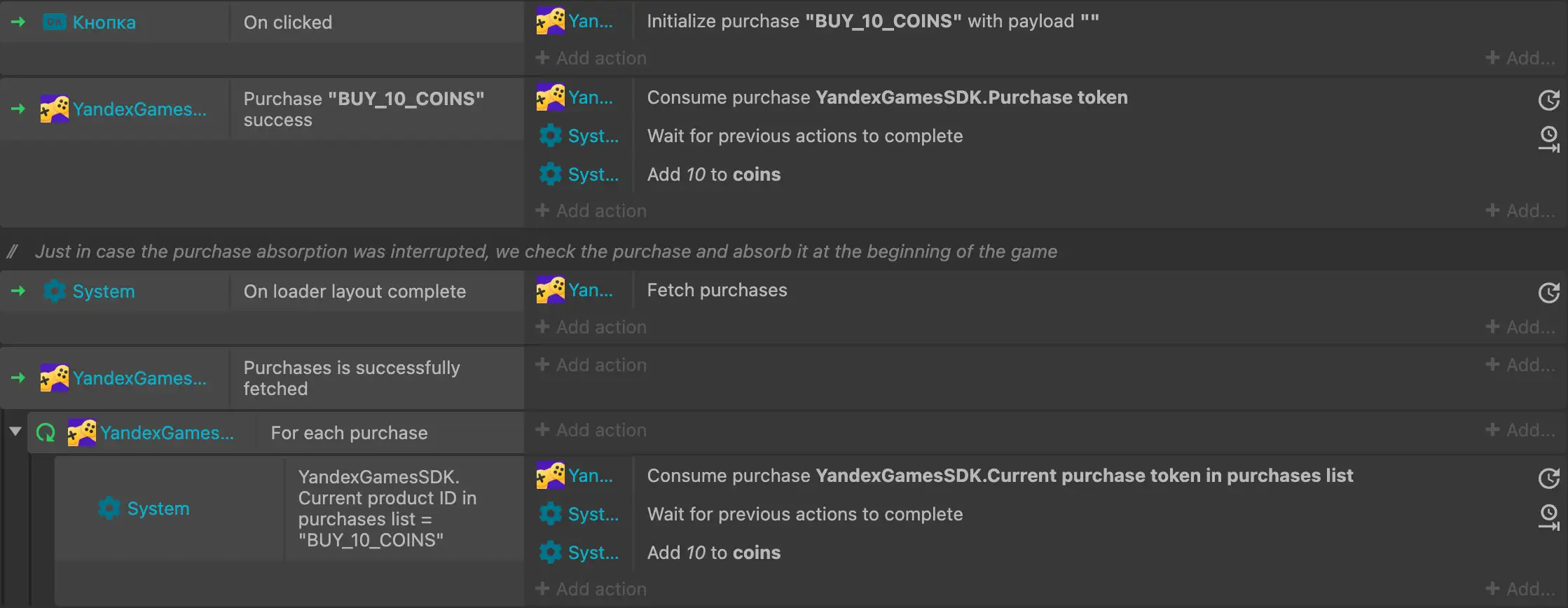
Construct 3 screenshot: in-app purchase setup screen using the YandexGamesSDK plugin. Table with three columns (each cell in the third column has "+ Add action" and "+ Add..." buttons) and two rows. Row 1 — "Button", "On clicked", "Yan... | Initialize purchase "BUY_10_COINS" with data """. Row 2 — "YandexGames…", "Successful purchase "BUY_10_COINS"", "Yan... | Consume purchase YandexGamesSDK.Purchase token"  settings icon "Sys... | Wait for previous actions to complete"  "Sys... | Add 10 to coins". Then the text: "// In case the purchase consumption was interrupted, check the purchase and consume it at the start of the game load". Below is a table of three columns (each cell in the third column has "+ Add action" and "+ Add..." buttons) with 4 rows. Row 1 — "System" settings icon, "Boot layout completed", "Yan... | Request purchases". Row 2 — "YandexGames…", "Purchases loaded", empty cell. Row 3 — "YandexGames…", "For each purchase", empty cell. Row 4 (nested in the previous row) — settings icon "System", "YandexGamesSDK. Identifier of the current product in the purchase list = "BUY_10_COINS"", "Yan... | Consume purchase YandexGamesSDK.Token of the current purchase in the purchase list"  settings icon "Sys... | Wait for previous actions to complete"  "Sys... | Add 10 to coins".

Product catalog

To handle products in the catalog, use the For each product in catalog loop with expressions from the Purchases list with the in catalog postfix.

Construct 3 screenshot: in-app purchase setup screen using the YandexGamesSDK plugin. Table with three columns (each cell in the third column has "+ Add action" and "+ Add..." buttons) and 4 rows. 1st row — the "System" settings icon, "On layout start", "Yan... | Request product catalog". 2nd row — "YandexGames…", "Product catalog loaded", empty cell. 3rd row — "YandexGames…", "For each product in the catalog", empty cell. 4th row — "YandexGames…", "Error loading product catalog", empty cell.


Repository