Leaderboards

On the game page, you can show personalized leaderboards with the results of the best players and the authorized user's place in the ranking.

To make the queries described below work, check that a leaderboard has been created in the Developer Console.

Alert

If there is no leaderboard with the corresponding name in the Technical leaderboard name field in the Console, requests will return a 404 error.

Submitting a score

Alert

The request is available only for authorized users. It is recommended to request authorization in advance and use leaderboards only if the user has provided personal data.

Construct 3 screenshot: leaderboard setup screen using the YandexGamesSDK plugin. Table with three columns (each cell in the third column has "+ Add action" and "+ Add..." buttons) and three rows. Row 1 — "System" settings icon, "Run once", "Yan... | Request player information. Personal data: False". Row 2 — "YandexGames…", "Player information loaded", empty cell. Row 3 — "YandexGames…", "Player authorized", "Sys... settings icon | Set authorized to True".

Use the Set leaderboard score action to send a new score to the leaderboard with the parameters:

Parameter

Type

Description

Name

string

Technical name of the leaderboard.

Score

number

The player's score in the leaderboard.

Additional data

string

Optional metadata sent with the score.

For example, sending a score to the leaderboard might look like this:

Construct 3 screenshot: leaderboard setup screen using the YandexGamesSDK plugin. Table with three columns (each cell in the third column has "+ Add action" and "+ Add..." buttons) and two rows. Row 1 — "Button", "On clicked", empty cell. Row 2 — "System" settings icon, "authorized true", "Yan... | Send score 10 to the "score" leaderboard with data """.

Note

You can send a request no more than once per 1 second; otherwise, it will be rejected with an error.

It's recommended to use score submission with a delayed event.

Construct 3 screenshot: leaderboard setup screen using the YandexGamesSDK plugin. Table with three columns (each cell in the third column has "+ Add action" and "+ Add..." buttons) and three rows. Row 1 — "Button", "On clicked", "Yan... | Wait 1 second for the setScore event". Row 2 — "YandexGames…", "On delayed event "setScore"", empty cell. Row 3 — "System" settings icon, "authorized true", "Yan... | Send score 10 to the "score" leaderboard with data """.

Leaderboard entries

To start working with the leaderboard, use the Fetch leaderboard action together with the trigger conditions Leaderboard is successfully fetched and Failure to fetch leaderboard. The action and conditions accept the following parameters:

Parameter

Type

Description

Name

string

Technical name of the leaderboard.

Top positions

number

Number of requested entries from the top of the leaderboard.

Request player position

boolean

Determines whether the user's position will be requested.

Positions around the player's position

number

Number of requested entries below and above the user in the table.

The plugin will request leaderboard data via the Yandex Games SDK, after which a loop will start if the request is successful. This process takes some time.

It is recommended to keep a loading indicator on the screen while the process is running.

Warning

Make sure this loop is not called constantly. It is recommended to use it inside functions or triggers.
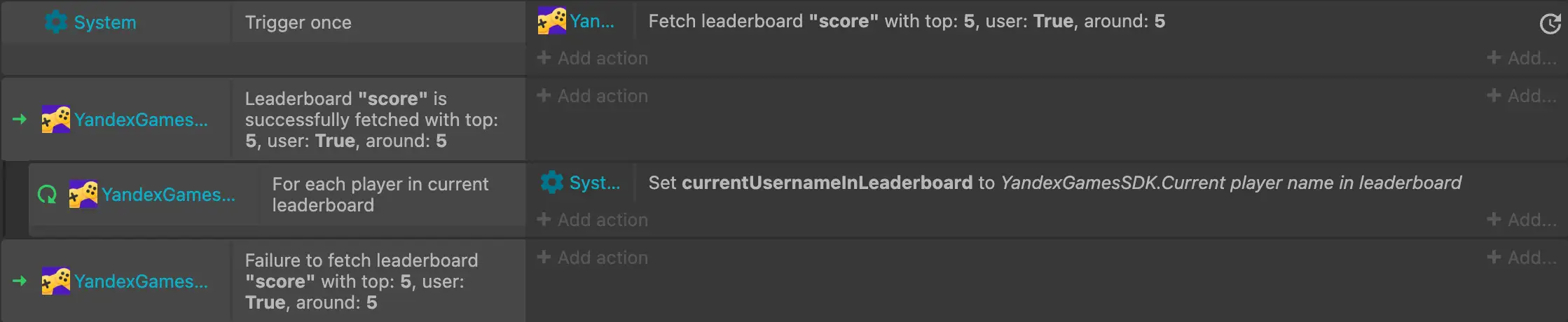
Construct 3 screenshot: leaderboard setup screen using the YandexGamesSDK plugin. Table with three columns (each cell in the third column has "+ Add action" and "+ Add..." buttons) and 4 rows. Row 1 — "System" settings icon, "Run once", "Yan... | Request the "score" leaderboard. Top: 5, user: True, around: 5. Row 2 — "YandexGames…", ""score" leaderboard loaded. Top: 5, user: True, around: 5.", empty cell. Row 3 — "YandexGames…", "For each player in the current leaderboard", "Sys... settings icon | Set currentUsernameInLeaderboard to YandexGamesSDK.Current player name in the leaderboard". Row 4 — "YandexGames…", "Error loading the "score" leaderboard. Top: 5, user: True, around: 5.", empty cell.

Inside the loop, you will have access to the expressions from the Leaderboards list.
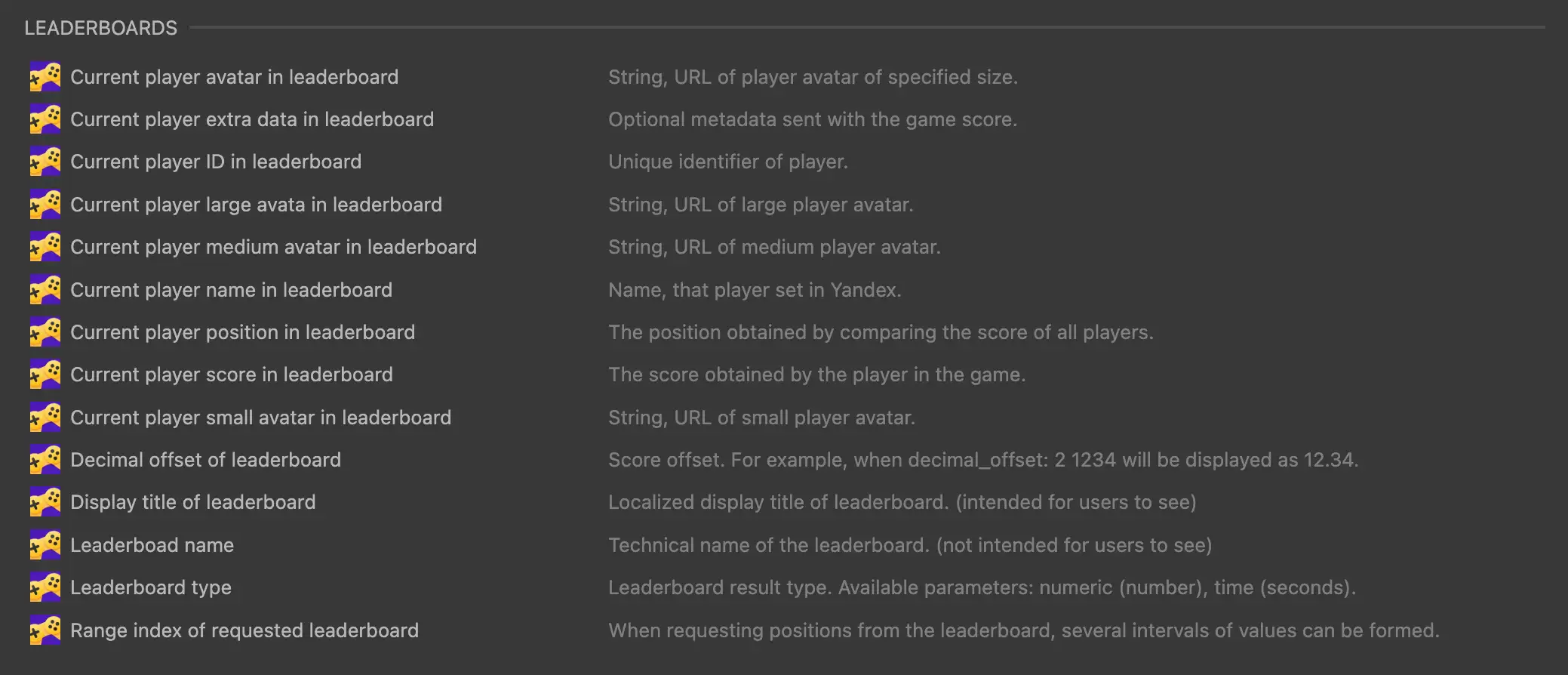
Construct 3 screenshot: in the upper left part of the screen, the label "Leaderboards". Below is a table with two columns and 14 rows. Row 1: Current player's avatar in the leaderboard | string, link to the player's avatar. May be equal to "" if there is no access to the avatar. Row 2: Current player's large avatar in the leaderboard | string, link to the player's large avatar. Row 3: Current player's additional data from the leaderboard | optional metadata sent along with the score. Line 4: Current player's name in the leaderboard | string, player name. May be equal to "" if there is no access to the name. Line 5: Index of the requested interval in the leaderboard | when requesting positions from the leaderboard, several intervals of values may be formed. Line 6: Current player's small avatar in the leaderboard | string, link to the player's small avatar. Line 7: Leaderboard name | localized leaderboard name. Line 8: Current player's position in the leaderboard | position obtained by comparing the scores of all players. Line 9: Leaderboard decimal offset | size of the decimal part of the score. For example, with decimal_offset: 2, the number 1234 will be displayed as 12.34. Line 10: Current player's medium avatar in the leaderboard | string, link to the player's medium avatar. Line 11: Current player's score in the leaderboard | score earned by the player during the game. Line 12: Leaderboard technical name | string, technical name of the leaderboard (not intended for display to users). Line 13: Leaderboard type | type of the player's score in the leaderboard. Possible values: numeric (number), time (seconds). Line 14: Current player's unique identifier in the leaderboard | string, unique player identifier.


Repository