Localization
Creating translations
To create a translation, create an i18n folder. It will store translations in JSON format files.
As an example, let's create en.json and ru.json files, which will correspond to the English and Russian languages.
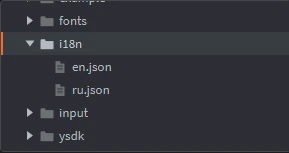
Add the content to the translation files:
1{
2    "game": {
3        "title": "Cool Game"
4    },
5    "button": "Button"
6}
1{
2    "game": {
3        "title": "Крутая игра"
4    },
5    "button": "Кнопка"
6}
Retrieving translations
To get the value of a specific key, you can use the i18n.key(key) method.
print(i18n.key("game.title")) -- "Cool Game"
There is also a helper method i18n.gui(node_id, key), which replaces the content of the selected UI node.
With i18n.gui(), we can shorten:
gui.set_text(gui.get_node("title_label"), i18n.key("game.title"))
Before:
i18n.gui("title_label", "game.title")
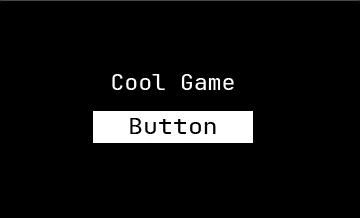
Example of game localization
 1local i18n = require('ysdk.i18n')
 2
 3local function on_localize()
 4    i18n.gui("title_label", "game.title")
 5    i18n.gui("button_label", "button")
 6end
 7
 8function init(self)
 9    i18n.on(on_localize)
10end
11
12function final(self)
13    i18n.off(on_localize)
14end
Changing the translation language
Note
The i18n module automatically initializes the language to match the user's environment variables.
It is recommended to use this method only if you want to manually change the language according to the user's request.
To change the translation language, you can use the i18n.set_language(code: string) method.
1function settings.change_language(code)
2    i18n.set_language(code)
3end